AI Domestic Servers: GPU Power Brake, Domestic PCIe 4.0/5.0 Switches for GPU Expansion Cards and NVMe Storage Cards, Replacing Broadcom
#服务器#人工智能
Power brake is categorized into proactive and reactive triggers.
Proactive Trigger (Proactive) Operational Steps:
- Enter UEFI --》 Select System Settings --》 Select Power --》 Change the "PCIe Power Brake" option to "Proactive" --》 Shut down
- The installed PSU must comply with the following requirements: (The machine's total power wattage must exceed 1/3 of the PSU's wattage)
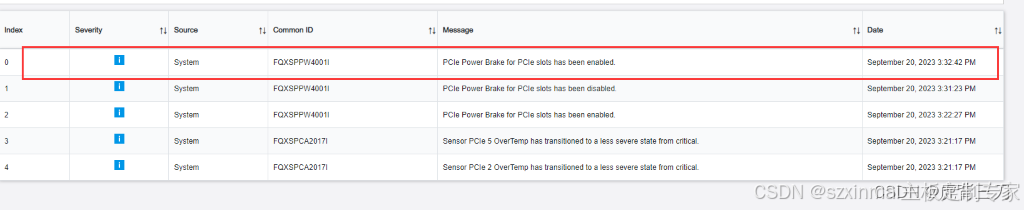
- Powering on will trigger the power brake, and you will see the effect shown in "【Figure 1】" in the XCC web events log.
- Run a GPU stress test, and you will see the effect shown in "【Figure 2】". (GPU power is not running at full capacity)
Reactive Trigger (Reactive) Operational Steps:
- Enter UEFI --》 Select System Settings --》 Select Power --》 Change the "PCIe Power Brake" option to "Reactive" --》 Restart and enter the OS
- Unplug a fan. (Some machines may require heating with a hairdryer)
- Shortly after, you will see the effect shown in "【Figure 1】" in the XCC web events log. (XCC has already triggered the power brake)
- Run a GPU stress test, and you will see the effect shown in "【Figure 2】". (GPU power is not running at full capacity)
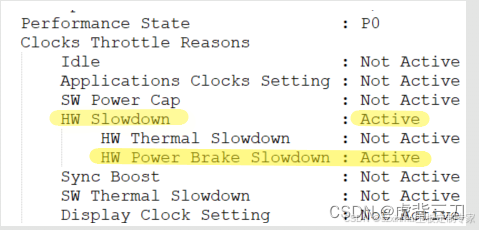
Additionally: For NVIDIA GPUs, you also need to check if the driver has triggered power management.
Enter the command "nvidia-smi.exe -q"
Check if it matches the display in "【Figure 3】".
【Figure 1】
【Figure 2】

【Figure 3】