Industrial Internet-based RV1126+AI Security Monocular/Binocular HD Visual Analysis and Counting Solution
1 Product Introduction
-
- Product Overview
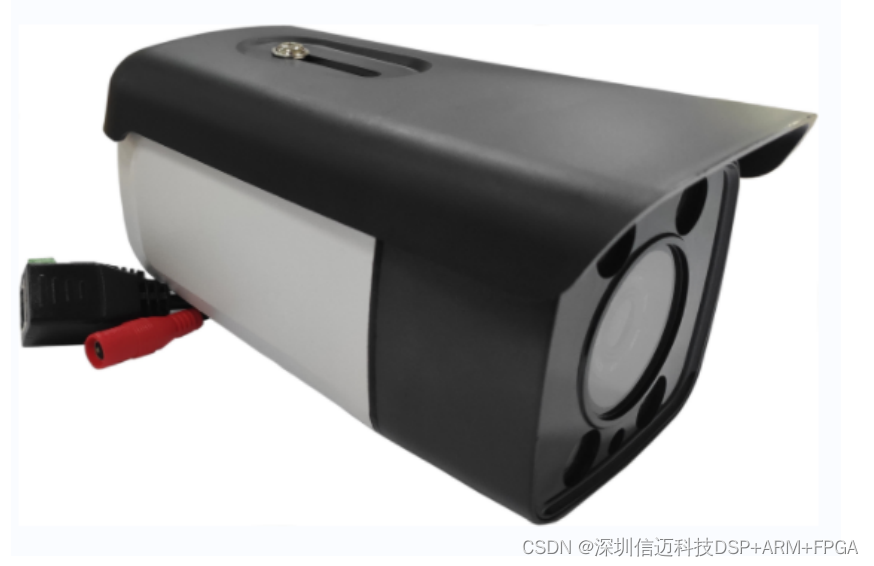
The Monocular Vision Analysis Counter is a regional statistical counter developed by Xinmai Technology based on monocular image analysis and deep learning algorithms. It can accurately identify objects within a monitored area, count the number of people/vehicles staying in the area, and also count the number of people entering and leaving the area. It is suitable for various scenarios requiring passenger flow statistics, such as buses, coaches, shopping malls, ferries, and scenic spots, and can also be used for scenarios requiring vehicle counting.
1.2 Product Principle
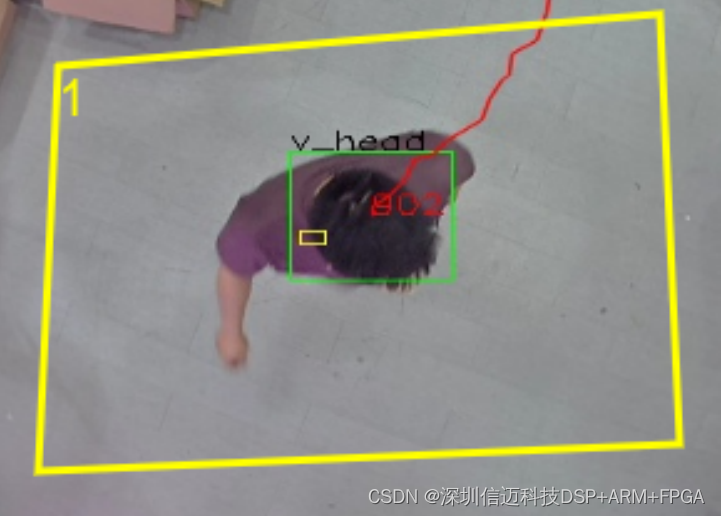
First, a monocular camera captures image information. The deep learning model simulates the human brain's visual perception system, directly extracting features such as object movement, color, and contour from raw images. These features are passed layer by layer to obtain high-dimensional information from the images, which is then deeply analyzed by neural networks to achieve higher precision object detection.
1.3 Product Features
- Industrial-grade design, simple structure, high precision, strong stability
- Passenger flow information can be uploaded to the platform in real-time, and statistics can be viewed on the platform in real-time.
- Proprietary passenger flow counting algorithm, with an average counting accuracy of over 92%.
- Web-based operation, device can be configured via web.
- Supports area dwell time statistics / area passage statistics.
- Diverse object recognition, supports human body shape recognition / head recognition / car recognition / truck recognition, etc.
- Supports custom recognition, customizable recognition types, such as: eggs, cattle, sheep, etc.
- Supports ONVIF/HTTP/ and other protocols
1.4 Common Use Cases
Passenger flow counting can be installed in supermarkets, scenic spots, construction sites, elevators, buses, and other scenarios, including but not limited to the following two counting methods.
1 Installed at entrances/exits, counting people entering and leaving the area
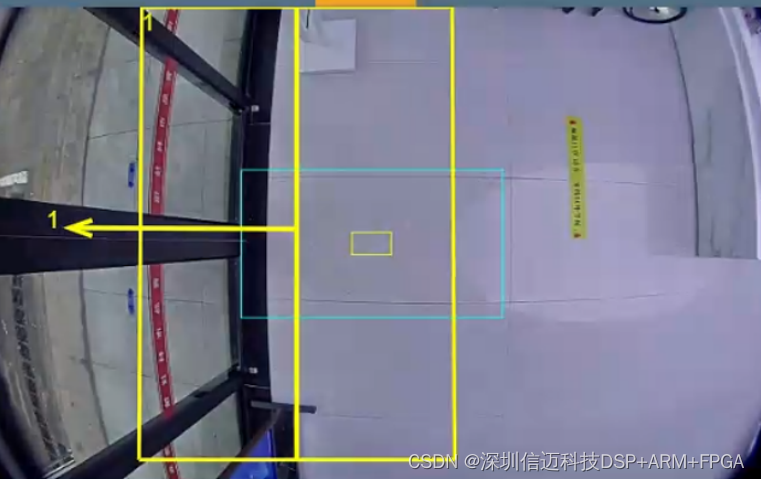
2 Installed at ticket offices, counting people dwelling in the area.

2 Product Specifications
System Parameters:
Processing Power
2.0 TOPs
Operating System
Linux
Operation Method
Web
Image Parameters:
Sensor
SONY
Supported Resolution
1920*1080
Frame Rate
Main stream: 3840*2160 1-30 fps
Sub stream: 1280*720 1-30 fps
Focal Length
Fixed-focus lens (3.6/4.0/6.0/8.0/12.0 customizable)
Recognition Parameters:
Accuracy
≥95%
Simultaneous Recognition Capacity
Up to 100 people simultaneously
Detection Zones
Supports up to 4 custom zones
Entry/Exit Direction
Each zone supports custom entry/exit directions
Detection Types
Head / Human figure / Vehicle flow (others customizable)
Detection Method
Area Passage / Area Dwell
Interface Parameters:
Power
DC connector X1
Network
RJ45 X1 (PoE not included by default, customizable)
RS485
Customizable
Relay Output
Customizable
Other Parameters:
Operating Temperature
-20℃ to 70℃
Operating Humidity
8%-90% (non-condensing)
Weight
(Camera only)
Power Supply
12V
Power Consumption
< 7W
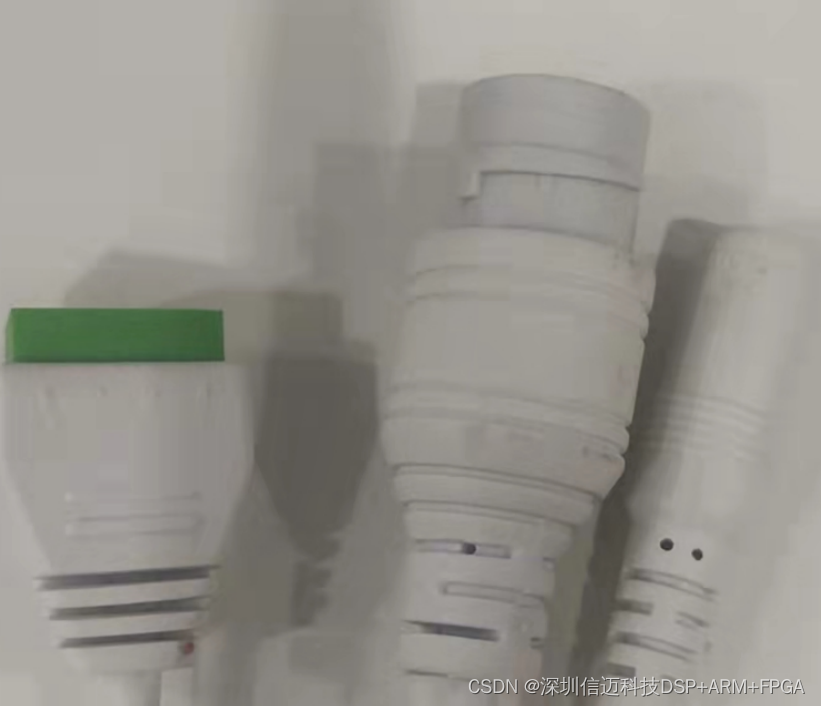
Terminal definitions (leftmost): 1 2 Relay
3 RS485A
4 RS485B
3 Instructions for Use
3.1 Web Login
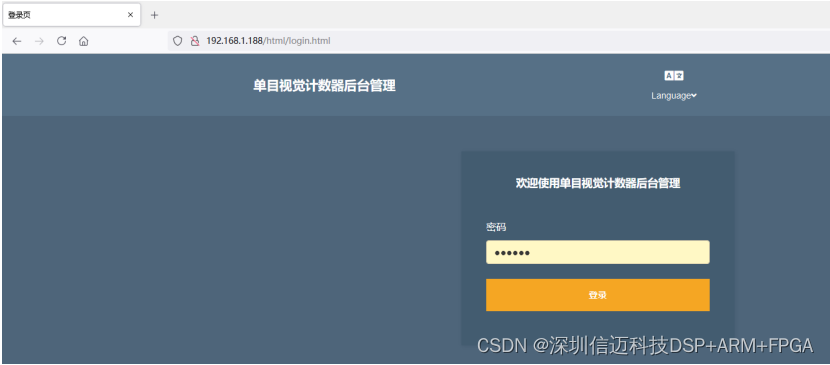
Connect the device via an Ethernet cable and access its web client from a computer. Note that the computer's IP address must be in the same network segment as the device's IP address. The device's initial login password is 123456.
3.2 Draw Counting Zone
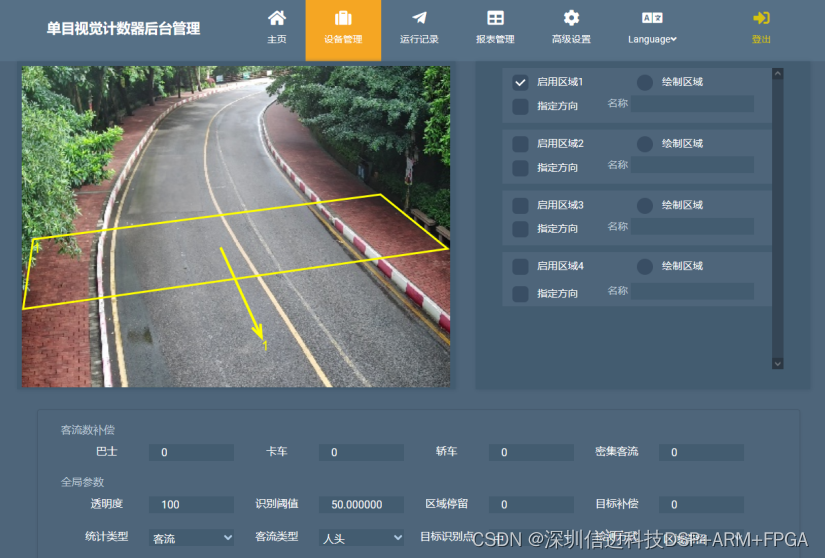
Enter the device management interface.
First, click 'Enable Zone', then click 'Draw Zone' to draw the desired counting zone directly on the left screen. Finally, click 'Specify Direction' and point the arrow in the exit direction. Save the settings at the bottom of the page.
3.3 Global Settings Description
Passenger Flow Compensation: Default setting, no modification needed.
Transparency: 0-100. Controls whether recognized objects are obscured or not.
Recognition Threshold: 0-100. The threshold for recognition.
Passenger Flow Type: Statistical model. Recognizes based on human body shape or head.
Target Recognition Point: Uses the upper/middle/lower part of the recognized object as the counting point.
Max Width - Max Height: Maximum width and height of recognized objects. Needs to be set according to actual conditions.
Min Width - Min Height: Minimum width and height of recognized objects. Needs to be set according to actual conditions.
3.3 Operation Log
Click 'Operation Log' at the top to enter the operation log sub-page. As shown in the figure.
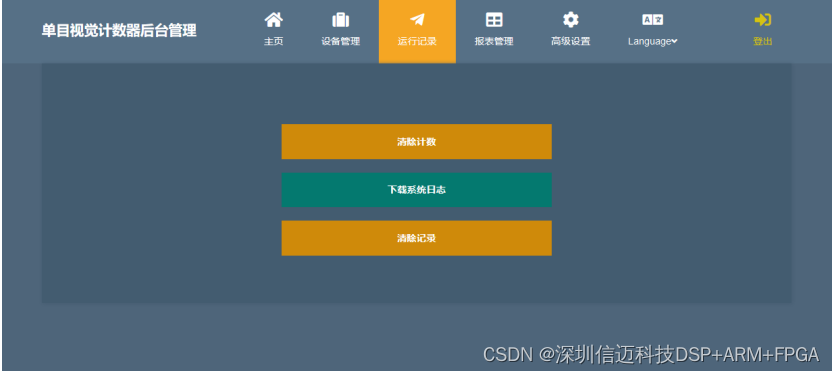
Clear Count: Click to clear the current count.
Download System Log: Click to download the system log to your computer.
Clear Records: Click to clear all passenger flow records stored on the device.
3.4 Report Management
Click 'Report Management' at the top to enter the report management sub-page. As shown in the figure.

Report Type: Select the report type to query, divided into Passenger Flow Statistics and System Events.
Granularity: Select the event for query.
Query: Click to query the report.
Download Report: Click to download the report to your computer.