Image Acquisition and Processing Application with AM5728 + QT, Chinese Font Display
Step 1: Download the WenQuanYi font. I'm using wenquanyizenhei.ttf. I'll attach the file later.
Step 2: Place the font file into the Ubuntu system's font directory.
Create a new folder named wqy under /usr/share/fonts, then copy the font file into it. Perform the following operations:
# cd /usr/share/fonts
# mkdir wqy
# cd wqy
# cp /...(font file path) /usr/share/fonts/wqy
Note: Make sure you remain in the wqy directory, then execute the following commands to update the font cache:
# mkfontscale
# mkfontdir
# fc-cache
After completion, open Qt, place a label on the UI, type some text, select the label, and locate the font property in the right-side property panel.
Click to expand, as shown in the image below:
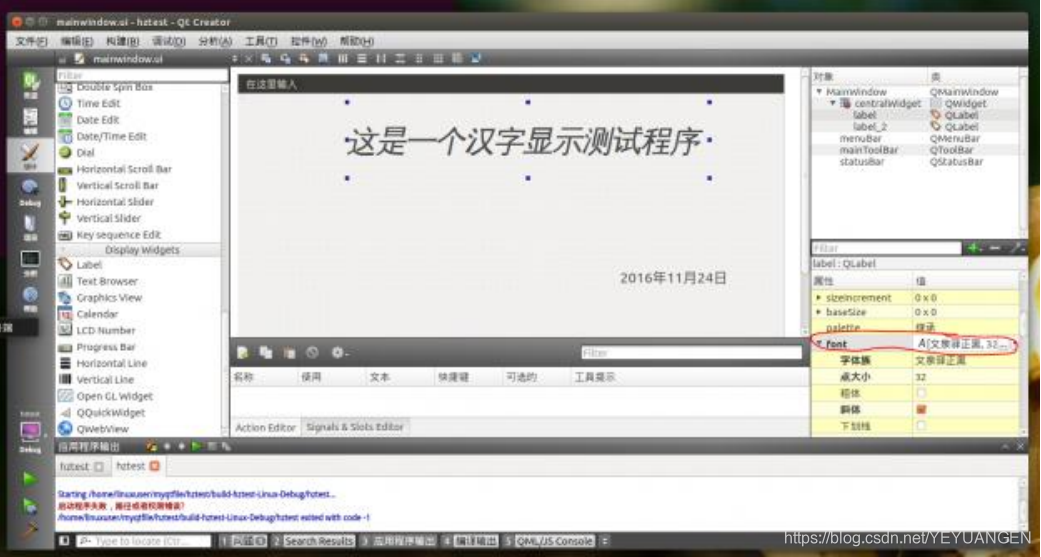
Find the font you just installed. Isn't that amazing?
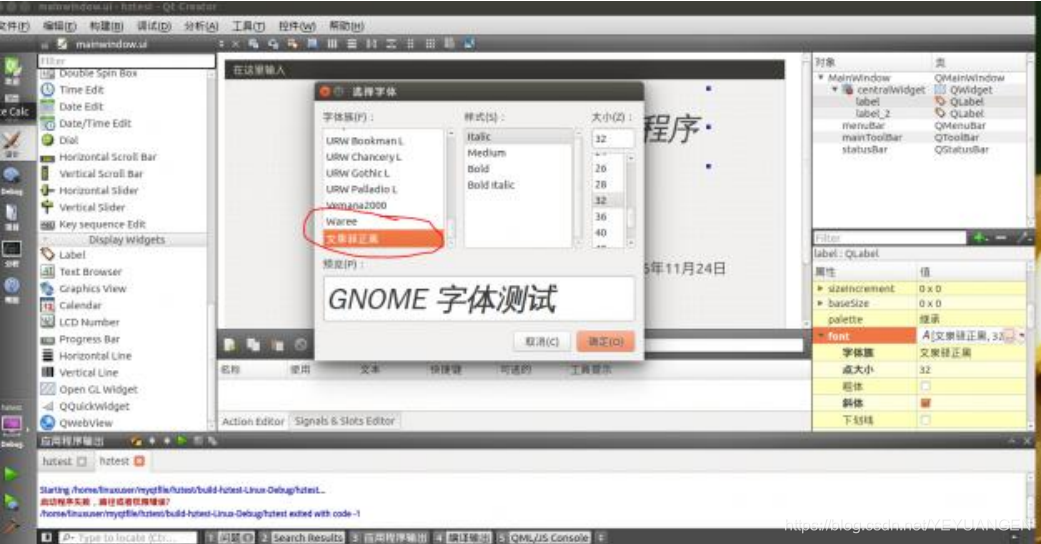
Cross-compile into an executable file.
Step 3:
Now it's time to set up the font on the ARM board. Copy the .ttf font file to the Qt font directory on the ARM board. In my case, it's /usr/qt/lib/fonts.
On the development board, execute:
export QT_QPA_FONTDIR=/usr/qt/lib/fonts
Step 4:
Copy the cross-compiled executable file to the development board and run it.
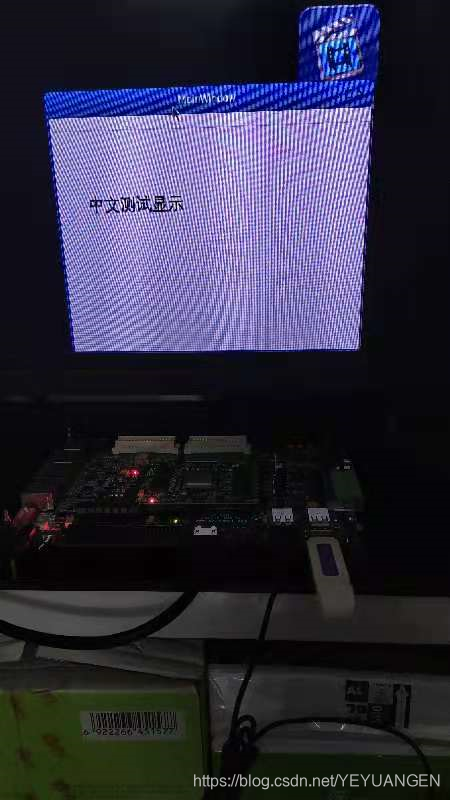
This experiment is based on the Xinmai AM5728 development board.
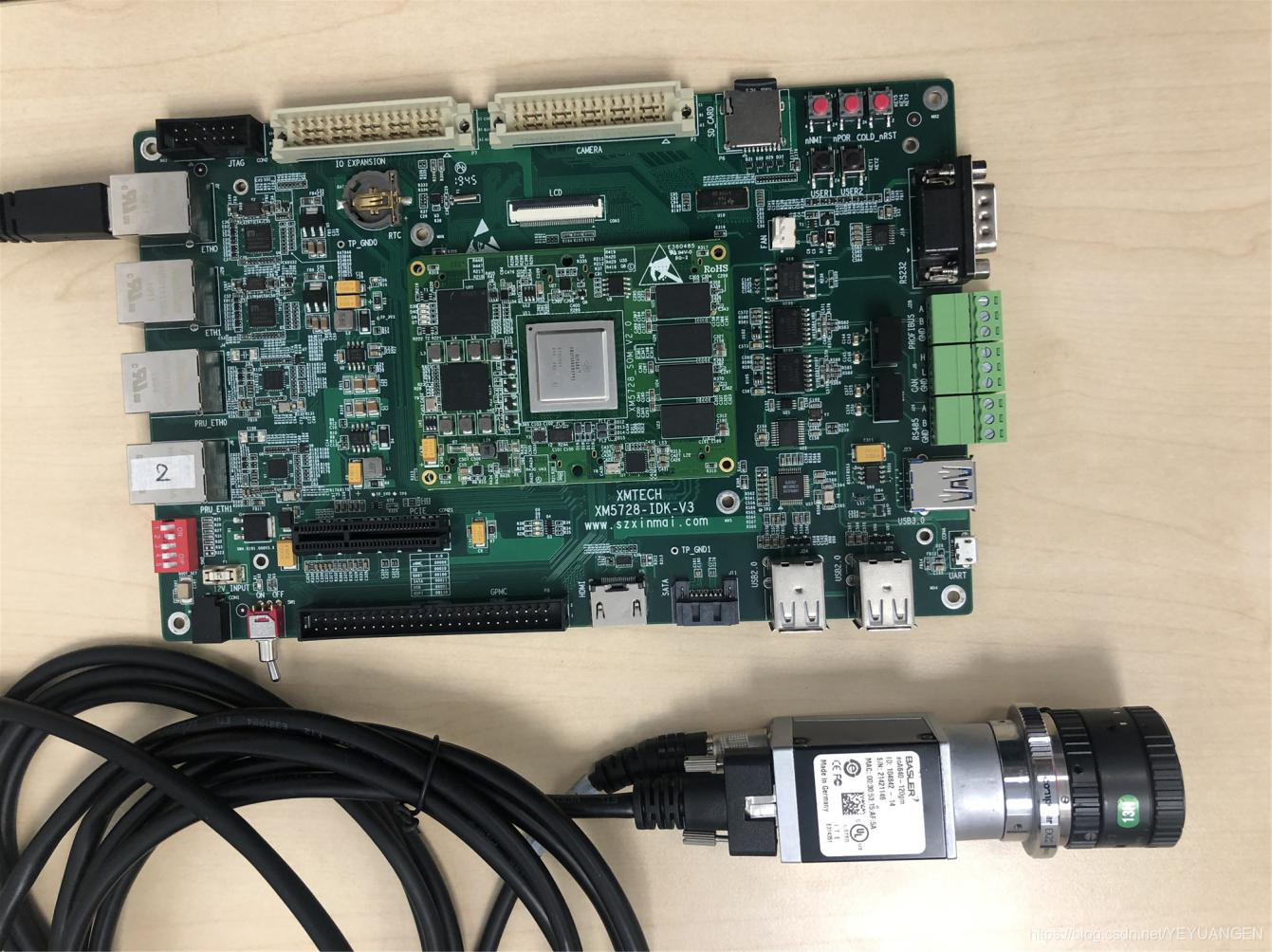
##1: SSH remote access to AM5728
ssh root@192.168.123.70
##2: Open another terminal and enter the TI5728 SDK environment:
source ~/ti5728sdk/linux-devkit/environment-setup
##3: In the SDK environment, launch Qt Creator:
~/Qt5.9.0/Tools/QtCreator/bin/qtcreator
##4: Successfully open Qt and start compiling.
##5: When compiling remotely on AM5728, add the remote target path in the .pro file:
target.path += /home/root
INSTALLS += target
Save the project, then click Project on the left toolbar --- select AM335x EVM ---- Run --- you'll see the remote execution path has been updated to the AM5728's /home/root/ directory.
##6: Run the project:
Click the green Run button at the bottom of the left toolbar to start compiling the executable, transferring it remotely to the AM5728, and running it remotely.
##7: Close the program on AM5728:
Press Ctrl+C in the SSH terminal window to exit the program currently running on AM5728.
##8: Use SSH to power off/reboot AM5728:
poweroff
reboot
##9: Use SFTP for remote file transfer between local machine and AM5728:
sftp root@192.168.123.70
Syntax: put (get) [options] source_file_or_directory destination_file_or_directory
Description: This command copies (or retrieves) the specified source file(s)/directory to the destination.
Available options:
- a: Typically used when copying directories. Preserves links, file attributes, and copies directories recursively. Equivalent to combining dpR options.
- d: Preserves links during copy.
- f: Deletes existing destination files without prompting.
- i: Opposite of -f. Prompts before overwriting destination files. Respond with 'y' to confirm overwrite—enables interactive copy.
- p: Copies not only file content but also modification time and access permissions to the new file.
- r: If the source is a directory, recursively copies all subdirectories and files. Destination must be a directory.
- l: Does not copy; creates symbolic links instead.
Example: put -r /home/lidawei0124/led /home/root/